
“Quick Tip” Preparation and Overview for Windows XP End of Life Upgrade Tutorial and How to Transition Safely, Efficiently, and Cost Effectively
I. Preface -
I had written this a few months ago (on April 7th in fact), and thought I had lost it. I found it, so while many may or may not have moved on from Windows XP - as this C-NET Article:Windows XP still alive and kicking points out. Either way, there are some good ancillary tips in here and I would personally recommend getting away from XP as fast as you can@ :) .
SimpleAssist shares it's tips and tricks for free, and can be contracted to provide personalized solutions for your home and business at www.simpleassistme.com
II. Objective
SimpleAssist has put together this guide to help users affected by the Windows XP End of Support deadline, outlining steps to simplify the processes of upgrading Windows XP, or preparing for a transition to a new computer.
This "DIY" guide is intended to help those who need to prepare, and is applicable to both upgrading your existing platform or transitioning your data over to a new computer. Our goal, as always is to help users save money, stay safe, and make sense of real world option by "tuning-out" the noise and misleading information (e.g. Microsoft's claim that many users will need a new computer) based on our real world experience and overall knowledge of the technology landscape.
This "DIY" guide is intended to help those who need to prepare, and is applicable to both upgrading your existing platform or transitioning your data over to a new computer. Our goal, as always is to help users save money, stay safe, and make sense of real world option by "tuning-out" the noise and misleading information (e.g. Microsoft's claim that many users will need a new computer) based on our real world experience and overall knowledge of the technology landscape.
Ultimately, the goal of the end users should be:
- Evaluating the cost vs. benefit of upgrading Windows XP vs. purchasing a new hardware.
- Ensuring the existing platform and personal data is free of Viruses and Malicious Software, and can be safely migrated to an updated version of Windows on an existing or new computer
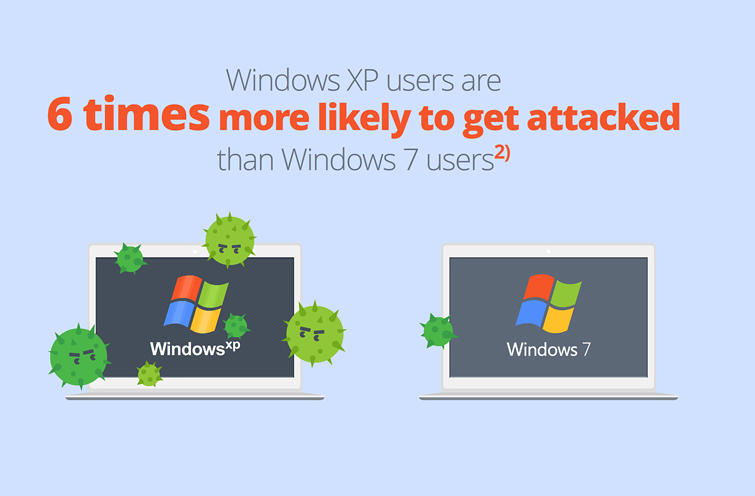
- Recognizing the danger of continuing to use Windows XP without official support from Microsoft.
The steps below are aimed at helping those interested in achieving the aformentioned goals by providing a detailed suggestions - including software tools and methodologies - that reflect the real-world experience of the author and in the best effort to minimize the cost and burden of our followers.
We remind you that this guide, in and of itself, cannot accommodate for the variable nature of your unique system setup including; hardware, software, and skillset and/or needs of the reader. The document is meant a a good faith overview based on the experience of the author and therefore, should be used only at the risk of the "Reader" and cannot guarantee a successful outcome. These suggestions (including software recommendations) are also based on the experience of the author, and are not specific endorsements.
SimpleAssist, a technology and repair consultant firm, can be contracted for hire to provide direct one-on-one assistance and can then assume responsibility for the success of these suggestions.
We remind you that this guide, in and of itself, cannot accommodate for the variable nature of your unique system setup including; hardware, software, and skillset and/or needs of the reader. The document is meant a a good faith overview based on the experience of the author and therefore, should be used only at the risk of the "Reader" and cannot guarantee a successful outcome. These suggestions (including software recommendations) are also based on the experience of the author, and are not specific endorsements.
SimpleAssist, a technology and repair consultant firm, can be contracted for hire to provide direct one-on-one assistance and can then assume responsibility for the success of these suggestions.
III. Preparation
- WATCH OUT FOR SCAMS, OFFERS, ETC. Beware of responding to solicitations regarding upgrade assistance, beware of fake emails or phone calls, and contact someone you trust if you are unsure. As indicated in a previous blog post, there are scammers and malware infections targeting Windows XP users, in addition to all the hardware manufacturers who's interest is selling hardware that may not be needed. We strongly recommend evaluating your needs with a trusted professional, and the cost vs. benefit of upgrading your existing platform vs. migrating to new hardware as the processes of transferring data, settings, etc. is relatively similar.
- Find as many of your product keys, emails and discs that you can find for reinstalling your own software as an upgrade (or transferring to a new computer) is a "CLEAN" installation. There are tools, you Use a Key Finder such as Magic Jelly Bean Key Finder (NOTE: Remember to click on ADVANCED TAB to UNCHECK the conduit search toolbar, as per my blog post here) or this other amazing program that will locate the serial keys from your registry.
- Hit START – and search for CREATE RESTORE POINT (just in case there is an issue, you can restore your machine to this point in time
- Update Windows XP to 4/08/14 If you were unable to update Windows XP prior to the Anytime Upgrade Program (Note: Download both the Windows 7 and 8 version). IF YOU CANNOT UPDATE WINDOWS, DON’T WORRY - NOTE: If you were unable to do this prior to 04/08/2014, you can still download an OFFLINE updater that will install and download the updates. You can find this tool here.
- Go here to download the Windows 8 or 8.1 UPGRADE ADVISER. This is a must do - this will really be the key indicator as to what programs, drivers (hardware), etc. will run in Window 8.1 - NOTE: Read the two options very carefully!
I've upgraded many computers to both 7 and 8.1 - computers as old as 2004 without a problem! However, it's important to make note of the information related to specific programs and hardware issues, so you know what programs, features, and hardware will run on Windows 8.1 and what you may need to rebuy (fortunately, if you most programs are now subscription based so if you had Office 2003 on there and spent 500 bucks you can get Office 2013 for 10 bucks a month after 30 day trial.
This utility will also tell you how you can purchase Windows 8, and what can be transferred. This is always the tricky part, and while Windows did get a company to offer to do the data migration you're still better off using with Windows Migration Tool in my opinion. to be updated, and how you can purchase Windows 8 Note: Both Windows 7 and 8 have Windows XP program compatibility modes and, depending on what version of Windows, even “virtual” emulation of Windows XP programs. I.e. your problem with program compatibility don't change if you buy new hardware VS. upgrading. - Want a free trial of Window 8.1 that you can use for a year? (You have to rearm it ever 90 days and when you're done you'l have to do a clean install with a purchased license or transfer your data to a new Windows 8 machine. Either way, a great stop gap. I've been recommending this to my customers who think they will be making the transition to a new machine to sort of "get them used" to Window's 8.1 hybrid mobile / Windows Desktop functionality, give you the best of both worlds. As much as I disagree with shutting down XP support, Windows 8.1 is a solid O/S. (Which has greatly improved over the last year)
- Download the updated Malwarebytes 2.+ (while your there, you may want to check out MalwareBytes ANTI-EXPLOIT - especially if you're are still running Windows XP).
- DO A FULL SYSTEM SCAN of your Computer - www.malwarebytes.com -it's free, and it has a great new easy to use interface - they update their malware definitions all throughout the day so make sure you’re upgraded before you scan (NOTE: If you had Malwarebytes on your marine and it says TRIAL EXPIRED, simply RIGHT CLICK on the icon in the system tray and it will give you the option to UPDATE and then START SCANNER. Feel free to try the premium trial. The premium version adds more convenience features, and REAL time protection however Windows Defender and Microsoft Security Essentials can handle your firewall and real-time protection.
- If you have infections, follow the instructions given to quarantine. Note, viruses infect system files which are not always fully accessible in “normal” boot mode. After finding threats, reboot the computer and begin tapping F8 to bring up SAFE MODE WITH NETWORKING (Safe mode with access to your network/internet).
- Download Microsoft Security Essentials - MSE continues to upgrade the VIRUS (not the exploit and patch definitions) for their antimalware, plus it's free. I don't want to sound like a Norton hater, but I've had more luck with Malwarebytes and MSE combined than with any "pay to play" antivirus out there. Even if you just run the Microsoft Maclicious Software Removal tool, and Malwarebytes you'll be doing much better already! NOTE: This is a short term option ideally you need to get to a higher version of Windows or you will be compromised as important Operating System Patches are no longer available Windows XP. (Note: We recommend you run Malwarebytes FIRST before installing MSE.
- Restart the Computer in Safe Mode - Start the computer, tap F8 repeatedly and launch SAFE MODE. This should be your second scan so your definitions should be up-to-date
- After making sure you are virus free), start Windows Easy Transfer - this allows you to backup EVERYTHING from the computer which you should do anyway. If you DO Not have an external drive, I have a free solution for you that I use and love called Crashplan. Email me at dshocklee@simpleassistme.com. Windows Easy Transfer – W.E.T takes all your settings, folders, files etc. and migrates it to a .mig file that you can use to import your user info, etc., into Windows 7 or 8. If you don’t have an external hard-drive large enough to save the file, read below.
- NO EXTERNAL BACKUP? There is an amazing Cloud based backup solution called CRASH-PLAN that will allow you to backup UNLIMITED amount of data for 30 days! Note: If you have heard of Carbonite, Crashplan is similar, has a FREE FULL 30 day trial and works beautifully in the background and providing daily emailed reports on the status. Backup EVERYTHING, as the next phase of will be centered around getting your computer back to the state you are most comfortable working (font’s, customization's, etc. – even though it’s clean install, there are ways to bring over information in order to simplify things). As far as Crash plan, it is a SimpleAssist editor’s top pick for cloud based backup software and ideal because they are offering UNLIMITED storage, without a credit card, for 30 days (Also lets you backup to multiple computers or drives etc.). Regardless of the direction you plan to go (upgrade vs. new computer) you will be doing a "CLEAN INSTALL", and this will make it a little easier to save your settings and migrate everything over
- Don't completely trust you’re other Antivirus programs that you are Virus Free - This whole story was based around 2005 Machine Running Norton 360! After I removed the Ransomware, Norton and McAfee (I installed it just to see said it was OK), but Malwarebytes (free) found 142 infections. Between Malwarebytes and Windows Security Essentials you should be able to clear out your malware so you don’t risk reinfection upon upgrade / re-installation.
- I also recommend signing up for Chrome if you aren’t already on there, and due to the due to the seamless cloud integration features for all of your bookmarks, history, etc. Google is all cloud based, so in terms of future proofing your data, the “platform” methodology will really change the potential for all much more than a web-browser, and it really can make this processes easier on you!
More information will be forthcoming!


