Showing posts with label Optimization. Show all posts

Thursday, February 19, 2015

SimpleAssist LifeSync Spotlight: The "App" Universe, it's Benefits, and Death of the "Web-Browser"


App Consciousness:  Staying Safe and Streamlined with the "New Way" of Computing


Do you sometimes find it easier to use an App on your mobile device, vs. a web-page?

I was reminded of this today when my #smartphone powered down, and I was forced to fire up the laptop to continue the conversation I was having in the #FaceBookmessenger App.
While using the #facebook web-page for messaging, I remembered, "Even on the PC, there's an App for that.”
During conversations with clients, I discovered many are not aware of the benefit gained from approaching the tools used on the Internet through an App, rather than a web-based browser.  

What do I mean by App?


  • An App (short for application) is a self-contained program that usually relies on the Internet thereby reducing the demand on hardware.
  • An App is typically offered through an "App Store" from an Operating System such as #Android, #iOS, #Blackberry, etc.
  • All Apps require a high level of quality from software developers, ensuring stringent standards and rigorous safety guidelines. 


Apps and Devices

Most of us still use Desktops/Laptops internet browsers, and experience the internet differently based on whether we are using an App or a web-browser (such as Fox, Internet Explorer, etc.).

When using a web-page, you are using one program (the web-browser) to access programs and sites that vary in design, security, programming languages etc.
When using an App, you are using a specific program required to ensure strict standards and stringent safety guidelines.  Providing a consistent experience for users on different browsers; each App with its own rigid requirements
Consequently, you lose the added benefit of an Apps Store, which require those software tools above to provide a consistent experience for users on different browsers; all with their own requirements, and potential security risks.
Finally, software developers must design their websites using a variety of tools, where there are many more "options" [potential pitfalls] while a user is browsing the web.


It's Murphy's Law

Have you ever wondered why your smartphone is rarely plagued with a virus, and why it's easier to do things on a tablet or smartphone than it is on the computer?

The answer is simple: An App offers a more controlled environment with less potential to trigger something that would cause an infection.  


On the other hand, when you use a
web-page, you are using one program (a browser) to access different sites and programs, each varying in design, security, programming languages that increase the potential of Malware.

What is Malware?

·         Malware is malicious code that has subverted the security of the devices, and varies in severity and risk to the user.

·         Most malware typically (at minimum) circumvents the safe guards of the system for the purpose of gathering sensitive information, targeting unsolicited advertising, or opening the device to further infection or malicious uses.

·         Spoof emails are another type of delivery system for malware, inciting the user to initiate an action which can install malicious code that can give hackers control of your machine without your knowledge, or with express purpose of collecting your identity by mimicking legitimate persons or organizations such as your financial institution, the FBI, something you are familiar and often looking exactly like the real thing.

·         As most desktop owners are aware, several additional "plugins" are required for a consistent experience with Web-Browsers, such as #Java, #Flash, #Silverlight).Every computer I work on has antivirus/anti-malware program to identify potential infections.

·         Most infections are triggered by an action by the user, the overall point is:

Regardless of how good your security system is, there are exponentially more landmines to fall into using a web-browser vs. an App.

Other Considerations

This is not to say using the internet via a web-browser is bad, and doesn't offer its own virtues.

As the explosion of the App continues, we currently caught in the middle between the old way of doing things with one foot in each world between old and new.

We generally consider a matter of convenience, a security concern, or becoming more acclimated with the trend of technology and the fundamental role it plays in our society.

As more and more vendors scramble to offer these services, I am using examples based on my own personal preference.   As a technology consultant, I am fluent and match software to the needs of my customer.  

Here are few suggestions you can use to shift to an App mindset as you do with your mobile devices to take advantage of the seamless user experience and safety between all of your devices.

THE APP STORE - BEYOND MOBILE        
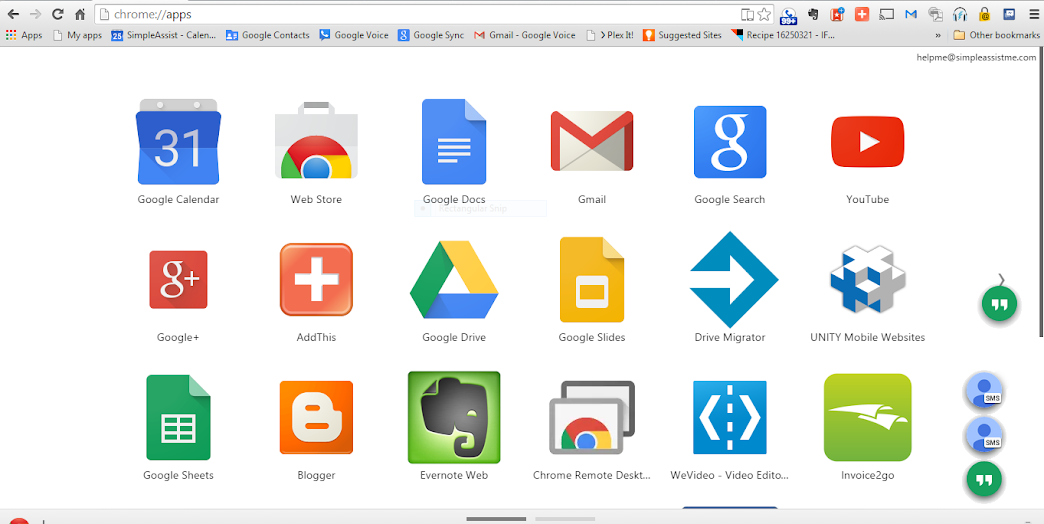
Chrome Appse -  Apps instead off Bookmarks
Chrome Web-Store - Facebook

Download


  1.  Download a Browser or Operating System that allows you to Install Apps

  •  Google Chrome has been the pioneer in cloud-computing (Internet-Based Software Development). The Google Chrome Web-Browser is much more than just an internet browser, and I often liken it to a self-contained operating system.
  • What's the other advantage?  With Chrome, you can use your current email address or create a free Gmail address to keep all of your bookmarks, history, and saved passwords synchronized across all your devices
  • Chrome for Desktop has the Chrome Web App Store which enables you to install Apps, and even start them right from your desktop. This means instead of having to visit a web-page, just as you would on your mobile device, you launch an application offering a cleaner, and synchronized, user experience.
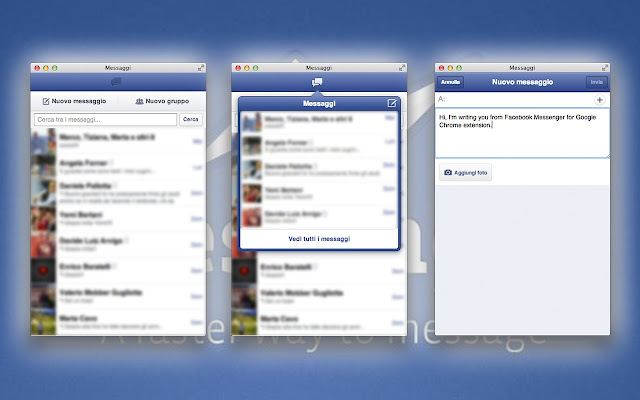
  • Google Chrome has a great selection (such as Facebook messenger, the inspiration for this post)

Upgrade


2. Upgrade to the O/S that supports Apps

  •  #Windows8.1 is a hybrid operating system.
  • A Hybrid Operating System is designed for both the old school and new school approach.
  • This system works on both regular desktop/laptop computers, as well as tablets and other mobile devices.
  • Windows8.1 has been developed to run on minimal resources!
  • It is an operating system that offers you both old school (web-based) new school approaches (App-based).
  • Windows 8.1 has the classic windows desktop


And a Metro menu.


      Apple is another company that is way ahead of its time. Despite my problem with the way they charge their customer, they the masters of elegance with their interface and the most recent versions of their OSX mirror functionality with their mobile iOS Operating Systems.   

Less Can Do More


The need for powerful hardware is actually reducing, a dramatic shift since the mobile device explosion.  Since software developers need to develop apps to run on these tiny mobile devices, and these applications are becoming available across

Before you buy new


Before you are convinced that you need to buy a new PC or MAC every few years, due your due diligence.

  •         Can it be cleaned or reloaded?
  •         Will a lighter O/S (like Windows 8.1) allow you
  •          If your computer is acting slow, maybe it just needs to be serviced (the result of       these inherent issues I mention before).
  • .      Even if your computer is a few years old, it's likely much more powerful than your mobile device.  


This is one of the strongest pieces of advice I offer my clients.

It all comes down to the software, and since developers are writing applications for mobile devices, the need for powerful hardware is greatly reduced.

In short, back in the day a web-browser was the primary way that people interacted with online resources and the primary "vehicle" to the #internet;.

However, with the rise of tablets and smartphones today's users are more inclined to use an "app", downloading an application from an App Store which is specifically tailored towards whatever the App is offering (e.g. you likely don't use your mobile based browser to check your email or do your banking. You download appropriate application.


In short, back in the day a web-browser was the primary way that people interacted with online resources and the primary "vehicle" to the #internet;. However, with the rise of tablets and smartphones today's users are more inclined to use an "app", downloading an application from an App Store which is specifically tailored towards whatever the app is offering (e.g. you likely don't use your mobile based browser to check your email or do your banking. You download appropriate application.


While this may all seem like lot of information, the short of it is that the speed of innovation with technology is outpacing the collective ability of the masses to keep up, collectively. Understanding the way the wind is blowing is now a necessary evil, as technology becomes more intertwined with our daily lives.

If you are looking a technology partner to help find ways to leverage technology for your home and/or business, visit www.simpleassistme,com. .


Wednesday, February 18, 2015

SimpleAssist Malware LifeSync Quick-Tip: Chrome "Developer Mode Warning" Malware

SimpleAssist QuickShield Tip: "Disable Developer Mode Extensions" popup in Chrome Browser


Is #Chrome popping up and asking you to disable developer mode #extensions? I've noticed this happening as a result of a pesky little piece of #malware which has been popping up lately, and is even slipping by the malware scanners (in at least two of my experiences). 
1A: Disguised as a legitimate extension 

This is a persistent bugger... under SETTINGS, EXTENSIONS in Chrome, you'll find the this extension typically disguised as a coupon "helper" or shopping toolbar (SEE Image 1A, above). It is uniquely defined by its inability to be deleted (after deleting, it pops back up when after starting Chrome), in addition to the "Disable Developer Mode Extensions?" popup upon starting Chrome. (Note: This is a legitimate warning, and If prompted,you should allow Chrome to Disable developer extensions). Not sure? Contact me at bit.ly/1FqyUs3 for more information or a free consultation.

from SimpleAssist - SimplEassistme.com http://bit.ly/1FqyUs3

via IFTTT

Tuesday, July 1, 2014

WINDOWS XP USERS - Post April 8th 2014 XP “End of Life” support - Upgrade Tutorial (Previously Unreleased)

 “Quick Tip” Preparation and Overview for  Windows XP End of Life Upgrade Tutorial and How to Transition Safely, Efficiently, and Cost Effectively


I. Preface -

I had written this a few months ago (on April 7th in fact), and thought I had lost it.  I found it, so while many may or may not have moved on from Windows XP - as this C-NET Article: 
Windows XP still alive and kicking points out.  Either way, there are some good ancillary tips in here and I would personally recommend getting away from XP as fast as you can@ :) .  
SimpleAssist shares it's tips and tricks for free, and can be contracted to provide personalized solutions for your home and business at www.simpleassistme.com


II. Objective

SimpleAssist has put together this guide to help users affected by the Windows XP End of Support deadline, outlining steps to simplify the processes of upgrading Windows XP, or preparing for a transition to a new computer.

This "DIY" guide is intended to help those who need to prepare, and is applicable to both upgrading your existing platform or transitioning your data over to a new computer.  Our goal, as always is to help users save money, stay safe, and make sense of real world option by "tuning-out" the noise and misleading information (e.g. Microsoft's claim that many users will need a new computer) based on our real world experience and overall knowledge of the technology landscape.   

Ultimately, the goal of the end users should be: 

  • Evaluating the cost vs. benefit of upgrading Windows XP vs. purchasing a new hardware.
  • Ensuring the existing platform and personal data is free of Viruses and Malicious Software, and can be safely migrated to an updated version of Windows on an existing or new computer
  • Recognizing the danger of continuing to use Windows XP without official support from Microsoft.   

The steps below are aimed at helping those interested in achieving the aformentioned goals by providing a detailed suggestions - including software tools and methodologies - that reflect the real-world experience of the author and in the best effort to minimize the cost and burden of our followers.

 We remind you that this guide, in and of itself, cannot accommodate for the variable nature of your unique system setup including; hardware, software, and skillset and/or needs of the reader.  The document is meant a a good faith overview based on the experience of the author and therefore, should be used only at the risk of the "Reader" and cannot guarantee a successful outcome.  These suggestions (including software recommendations) are also based on the experience of the author, and are not specific endorsements.

SimpleAssist, a technology and repair consultant firm, can be contracted for hire to provide direct one-on-one assistance and can then assume responsibility for the success of these suggestions.

III. Preparation

  1. WATCH OUT FOR SCAMS, OFFERS, ETC.  Beware of responding to solicitations regarding upgrade assistance, beware of fake emails or phone calls, and contact someone you trust if you are unsure.  As indicated in a previous blog post, there are scammers and malware infections targeting Windows XP users, in addition to all the hardware manufacturers who's interest is selling hardware that may not be needed.  We strongly recommend evaluating your needs with a trusted professional, and the cost vs. benefit of upgrading your existing platform vs. migrating to new hardware as the processes of transferring data, settings, etc. is relatively similar.    
  2.   Find as many of your product keys, emails and discs that you can find for reinstalling your own software as an upgrade (or transferring to a new computer) is a "CLEAN" installation.  There are tools, you Use a Key Finder such as Magic Jelly Bean Key Finder (NOTE: Remember to click on ADVANCED TAB to UNCHECK the conduit search toolbar, as per my blog post here) or this other amazing program that will locate the serial keys from your registry.
  3.  Hit START – and search for CREATE RESTORE POINT (just in case there is an issue, you can restore your machine to this point in time
  4.    Update Windows XP to 4/08/14  If you were unable to update Windows XP prior to the  Anytime Upgrade Program (Note: Download both the Windows 7 and 8 version). IF YOU CANNOT UPDATE WINDOWS, DON’T WORRY - NOTE:  If you were unable to do this prior to 04/08/2014, you can still download an OFFLINE updater that will install and download the updates.   You can find this tool here.
  5.  Go here to download the Windows 8 or 8.1 UPGRADE ADVISER.   This is a must do -  this will really be the key indicator as to what programs, drivers (hardware), etc. will run in Window 8.1 - NOTE:  Read the two options very carefully!

    I've upgraded many computers to both 7 and 8.1 - computers as old as 2004 without a problem!  However, it's important to make note of the information related to specific programs and hardware issues, so you know what programs, features, and hardware will run on Windows 8.1 and what you may need to rebuy (fortunately, if you most programs are now subscription based so if you had Office 2003 on there and spent 500 bucks you can get Office 2013 for 10 bucks a month after 30 day trial.  

    This utility will also tell you how you can purchase Windows 8, and what can be transferred.   This is always the tricky part, and while Windows did get a company to offer to do the data migration you're still better off using with Windows Migration Tool in my opinion.  to be updated, and how you can purchase Windows 8 Note: Both Windows 7 and 8 have Windows XP program compatibility modes and, depending on what version of Windows, even “virtual” emulation of Windows XP programs.  I.e. your problem with program compatibility don't change if you buy new hardware VS. upgrading.  
  6. Want a free trial of Window 8.1 that you can use for a year?   (You have to rearm it ever 90 days and when you're done you'l have to do a clean install with a purchased license or transfer your data to a new Windows 8 machine.  Either way, a great stop gap.   I've been recommending this to my customers who think they will be making the transition to a new machine to sort of "get them used" to Window's 8.1 hybrid mobile / Windows Desktop functionality, give you the best of both worlds.   As much as I disagree with shutting down XP support, Windows 8.1 is a solid O/S.   (Which has greatly improved over the last year)
  7. Download the updated Malwarebytes 2.+ (while your there, you may want to check out MalwareBytes ANTI-EXPLOIT - especially if you're are still running Windows XP).  
  8.  DO A FULL SYSTEM SCAN of your Computer - www.malwarebytes.com -it's free, and it has a great new easy to use interface -  they update their malware definitions all throughout the day so make sure you’re upgraded before you scan (NOTE:  If you had Malwarebytes on your marine and it says TRIAL EXPIRED, simply RIGHT CLICK on the icon in the system tray and it will give you the option to UPDATE and then START SCANNER.  Feel free to try the premium trial. The premium version adds more convenience features, and REAL time protection however Windows Defender and Microsoft Security Essentials can handle your firewall and real-time protection.
  9. If you have infections, follow the instructions given to quarantine.   Note, viruses infect system files which are not always fully accessible in “normal” boot mode.   After finding threats, reboot the computer and begin tapping F8 to bring up SAFE MODE WITH NETWORKING (Safe mode with access to your network/internet).
  10.  Download Microsoft Security Essentials  -  MSE continues to upgrade the VIRUS (not the exploit and patch definitions) for their antimalware, plus it's free. I don't want to sound like a Norton hater, but I've had more luck with Malwarebytes and MSE combined than with any "pay to play" antivirus out there.  Even if you just run the Microsoft Maclicious Software Removal tool, and Malwarebytes you'll be doing much better already!   NOTE: This is a short term option ideally you need to get to a higher version of Windows or you will be compromised as important Operating System Patches are no longer available Windows XP.   (Note: We recommend you run Malwarebytes FIRST before installing MSE.
  11. Restart the Computer in Safe Mode -   Start the computer, tap F8 repeatedly and launch SAFE MODE.  This should be your second scan so your definitions should be up-to-date
  12. After making sure you are virus free), start Windows Easy Transfer -  this allows you to backup EVERYTHING from the computer which you should do anyway.   If you DO Not have an external drive, I have a free solution for you that I use and love called Crashplan.   Email me at dshocklee@simpleassistme.com.  Windows Easy Transfer – W.E.T takes all your settings, folders, files etc. and migrates it to a .mig file that you can use to import your user info, etc., into Windows 7 or 8.  If you don’t have an external hard-drive large enough to save the file, read below.
  13. NO EXTERNAL BACKUP?  There is an amazing Cloud based backup solution called CRASH-PLAN that will allow you to backup UNLIMITED amount of data for 30 days!  Note:  If you have heard of Carbonite, Crashplan is similar, has a FREE FULL 30 day trial and works beautifully in the background and providing daily emailed reports on the status.   Backup EVERYTHING, as the next phase of will be centered around getting your computer back to the state you are most comfortable working (font’s, customization's, etc. – even though it’s  clean install, there are ways to bring over information in order to simplify things).   As far as Crash plan, it is a SimpleAssist editor’s top pick for cloud based backup software and ideal because they are offering UNLIMITED storage, without a credit card, for 30 days (Also lets you backup to multiple computers or drives etc.). Regardless of the direction you plan to go (upgrade vs. new computer) you will be doing a "CLEAN INSTALL", and this will make it a little easier to save your settings and migrate everything over
  14.  Don't completely trust you’re other Antivirus programs that you are Virus Free - This whole story was based around 2005 Machine Running Norton 360!  After I removed the Ransomware, Norton and McAfee (I installed it just to see said it was OK), but Malwarebytes (free) found 142 infections.   Between Malwarebytes and Windows Security Essentials you should be able to clear out your malware so you don’t risk reinfection upon upgrade / re-installation.
  15. I also recommend signing up for Chrome if you aren’t already on there, and due to the  due to the seamless cloud integration features for all of your bookmarks, history, etc. Google is all cloud based, so in terms of future proofing your data, the “platform” methodology will really change the potential for all much more than a web-browser, and it really can make this processes easier on you!
More information will be forthcoming!  

Thursday, June 5, 2014

SimpleAssist LifeSync Quick Tip - Consolidate (Automatically) Videos, Pictures, and Files between All Devices - Download Incentive

SimpleAssist LifeSync Tech-Tip

Dropbox® Cloud Storage - Overview and Ideas on Consolidating Pics Videos - Files on your Devices Together


Why Dropbox®?

When it comes to cloud storage, accept no substitute. When comparing all the cloud storage solutions, Dropbox® seems to be the clear leader of the pack when factoring functionality, pricing, platforms, etc.

 Recently, I had done a quick facebook post on OneDrive™ which has been gaining fast on Dropbox® and Google’s Drive™ in my opinion, especially in terms of the ability to earn free storage by doing a few simple things (setting your phone to backup up, etc.) which is double the amount of most if all free storage is gained correctly.

In fairness I am also an avid user of Google's® Drive and Microsoft's® One Drive/SkyDrive – I’ve sort of broken it up so I use Google Drive to go paperless at home, SkyDrive for my PC computer backup, Apple's® iCloud for everything except pix and videos, and DropBox for my business. However, Dropbox® has managed to stay on top for me due to the elegant yet robust interface and the platform functionality consistency across all versions of the app; MOBILE DEVICES, PC/MAC, WEB INTERFACE.

I have an iPhone and an Android Based Galaxy® Tablet. Here are two bonus tips with regard to cloud storage and consolidating your pictures and videos especially


IPhone Users: Bonus Tip: Not having removal storage on iPhone is a pain, and let’s be honest – you’re going to pay for iCloud! By using Dropbox® or some other cloud storage that has an iPhone App, backing up and centralizing your photos AND video (with Dropbox) on your phone easy for iPhone users who can't simply pop out a SIM Card, if you take advantage of the data incentives (See below) you could turn off PICTURES in iCloud if your backup ever fills up.


Android Users: Bonus Tip! When I first hooked up my Galaxy® Tab 3, I noticed that they had some sort of arrangement with Dropbox® if you set it up as your default Cloud Storage Backup. You receive a HUGE amount (at least with Samsung) of free space!   Email for more info...

PC Users: Bonus Tip! If you’ve install Dropbox® to your PC, not only do you get extra storage space for using it - anytime you plug in a new device (like an SD card or something with pictures on it) Dropbox will prompt you to add it. Also, selecting which folders are actually stored on the local hard-drive seems much more elegent vs. Google Drive and OneDrive. Since this is a quick tip, I wanted to include an unbiased review so I have included a charge and links to a few articles for more depth.

Comparison Chart and Article


See Complete Article Here - http://www.pcworld.com/article/254411/google_drive_vs_the_rest.html


Easy to Get Going / Easy to Keep Going

If you are looking for a hassle free way to enter the world of cloud storage, and easily sync files between all your devices, Dropbox® is easy, secure, and unmatched in certain areas of functionality.

You see, on my PC Dropbox® will ask if you want to backup pictures and videos from THERE (and give you additional storage space to do so) - so if you are like me and have your entire picture and video library everywhere, this and the additional space really put it over the top for me. Many folks may not know, but they also have a great web-portal developer options to customize and build cloud databases for your apps that is very user friendly. Dropbox® for Android - A must have - Android backs up your documents and data, and they give you a ton of space just for using it.

Without using the referral program indicated on the chart above was able to get over 50 Gigs by using an Android, an iPhone, and a Computer and setting it to automatically backup and consolidate my pictures (Win-Win). They also have a pretty decent referral program (earn up to 16GB by recommending to other user). As a user of iCloud, Google Drive, OneDrive - my second largest storage provider would be Google Drive at 30GB (which is much less than my free Dropbox® account). Dropbox® Pro or Dropbox® for business (paid subscriptions) START at 100GB for bucks a month or 100 bucks per year. It is this in particular (cloud space bang for buck) and the unique features and general ubiquity that makes Dropbox® a SimpleAssist "Top Pick" vs. its competition.

Referral Incentives - Download Links

I'd like to take a moment to explain my philosophy as relates to my recommendation of a technical product or service. Simply put, I only recommend products and services I have used extensively and believe in, and that the incentive must benefit the reader / whomever I am referring. Therefore i have included links to simply download or review from the Dropbox® Site or you (and I) can earn free space by clicking the link below: Dropbox: https://www.dropbox.com/
SimpleAssist Referral Incentive Download Link: 
https://db.tt/VUdYETx3   
 
Checkout PC Mag's "Best Cloud Storage" Article - http://www.pcmag.com/article2/0,2817,2413556,00.asp 

I welcome comments and emails on getting the most "free storage". I will be sure to update this accordingly! 

Thursday, June 13, 2013

Tech Tip: Need to Visualize Your Hard Drive for Cleaning it Up or Maintenance?

Visualizing Your Hard Drive

June  13, 2013 (Originally Posted)
Ever wonder where the files taking up your hard drive? Recently I began wondering after I found myself frustrated that I had filled up nearly the entire terabyte on my laptop, and having lost the cord to my 2T external... :-)I started thinking... how difficult is it in this modern world to figure out where your large files are?  I mean, we know the files that we don't want to delete are usually stored (pics, videos etc) but to have to go to each folder on the computer and to view the size, I figured there had to be something better, figured that it had to be "visual" and did some digging.

I will be adding this to my TOP TIP category...  check it out! 


Click here to read a review by tech a writer who reviewed Graphical Hard Drive Interface programs that can help you "road-map" your hard drive, so you can make freeing up your hard drive (and your life)... a little easier. 


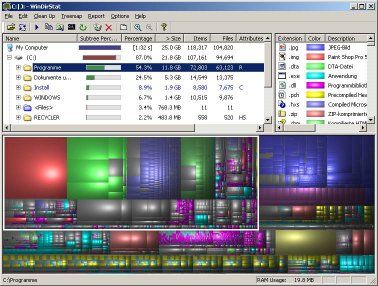
My Recommendation:  WinDirStat: Windows Directory Statistics - WinDirStat (WDS) is a disk usage statistics viewer and cleanup tool for Windows. It shows disk, file and directory sizes in a treelist as well as graphically in a treemap.  It's fairly simple to use, and get's the job done! 

Website for WinDirStat:

Direct Download Link (SourceForge):